
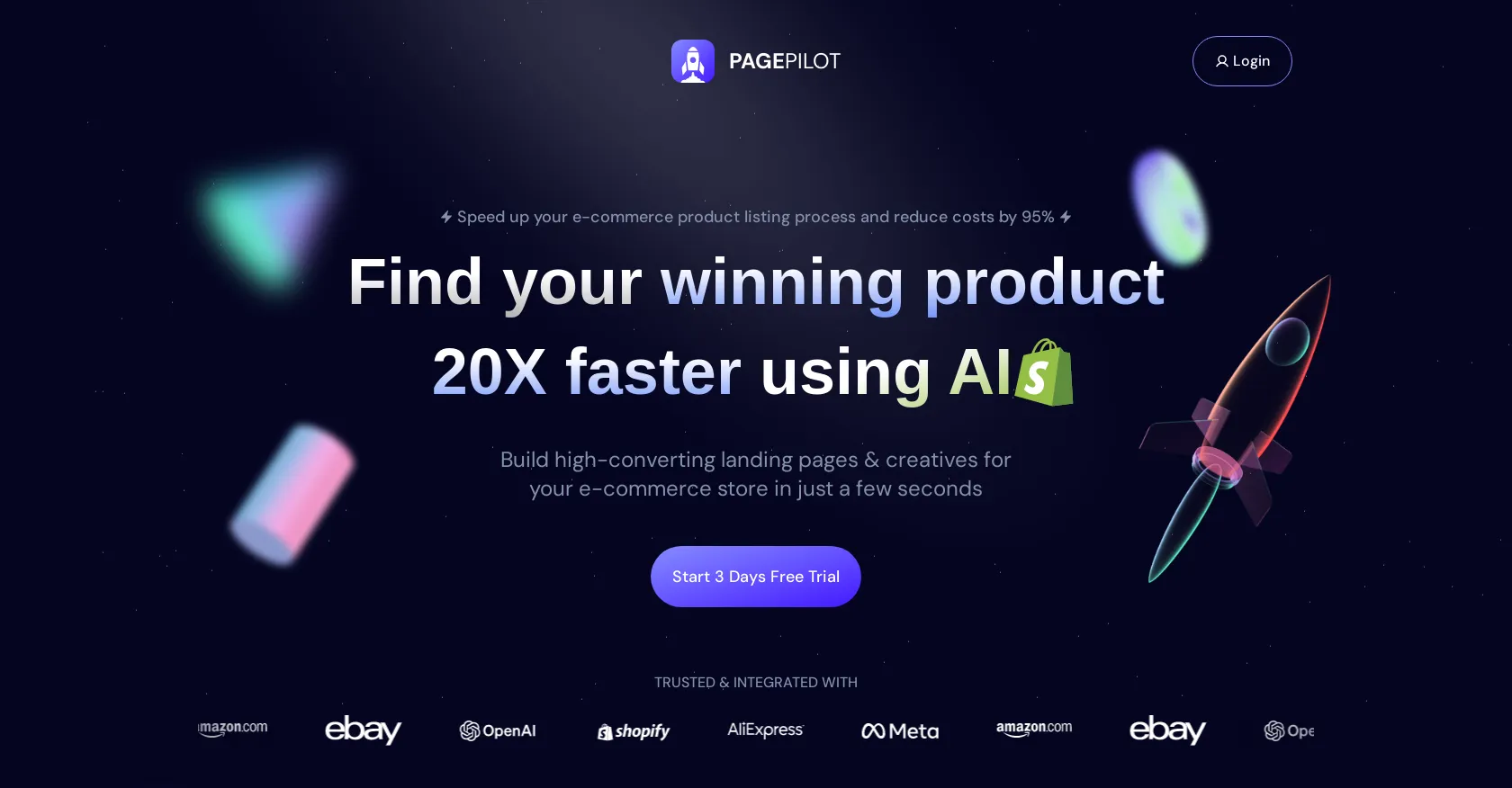
PagePilot AI turns a product link into a finished Shopify product page. The whole process takes a few minutes once you know the steps. This guide walks you through setup, your first page, and the edits that make the difference between a generic AI page and one that sells.
How does PagePilot work?
PagePilot reads a product listing from a supplier or another store, extracts the product details and photos, and uses AI to write a full sales page around them: headline, benefits, feature sections, FAQ and reviews block. It then lays the content out in Shopify-ready sections that you can rearrange, and publishes the page to your store on top of your existing theme. You do not need to change themes or write code.
Before you start
- A Shopify store (PagePilot works only with Shopify).
- The product URL you want to sell, from AliExpress, Amazon, Etsy, Temu, TikTok Shop or another Shopify store.
- A rough idea of your customer and the main problem the product solves. The AI writes better pages when you steer the angle.
You can follow every step below on the free plan. You only need a paid plan for the final step, publishing to your store. See PagePilot AI pricing for the limits.
Step 1: Install PagePilot and connect your store
Install PagePilot from the Shopify App Store or sign up on pagepilot.ai and connect your Shopify store. Approve the permissions so the app can create products and pages. No credit card is needed to start.
Step 2: Import a product from a link
Paste the product URL into PagePilot. Choose the language of your store and pick a template. PagePilot supports more than 30 languages, so you can generate a German, French or Spanish page directly instead of translating an English one. Generation takes only a few seconds.
Step 3: Choose your marketing angle
The same product can be sold in different ways: as a time saver, a gift, a health benefit or a premium upgrade. Use the angle suggestions to pick the story that matches your ads. Keep the angle consistent between your ad and your page; a mismatch is one of the most common reasons product pages fail to convert.
Step 4: Edit the AI draft
Treat the first draft as a starting point. Go through it section by section:
- Headline: make it specific to the result the customer gets, not just the product name.
- Claims: remove anything you cannot back up, such as medical claims, fake scarcity or invented statistics. AI copy sometimes exaggerates, and those claims can get your ads rejected.
- Shipping and returns: make sure delivery times and policies match what your supplier really offers.
- Sections: drag and drop the 35+ available sections to reorder the page, and delete blocks that add nothing.
You can ask the AI to rewrite any text block in a different tone or length, instead of rewriting it by hand.
Step 5: Improve the images
Supplier photos are often low quality and used by dozens of other stores. Use PagePilot's AI image tools to create lifestyle shots, cleaner product photos and ad creatives. Check every generated image carefully: the product must look exactly like what the customer will receive.
Step 6: Set up the cart drawer and upsells
Customize the cart drawer with upsells or bundles, such as “buy two, save 10%” or a matching accessory. This raises your average order value without extra ad spend. Keep it to one or two relevant offers so the cart does not feel cluttered.
Step 7: Publish to Shopify and test
Upgrade to a paid plan if you are on the free plan, then publish the page to your store. Before you send traffic to it:
- Open the page on your phone; most dropshipping traffic is mobile.
- Add the product to the cart and go through checkout up to the payment step.
- Check page speed and that your reviews app shows correctly.
- Connect the page to your ads and track the conversion rate for a few days before judging the product.
Tips to get better results
- Create one page per angle and test them against each other with different ads.
- Add real reviews through an integration such as Judge.me instead of relying on placeholder testimonials.
- Keep your brand consistent: use brand matching so every page uses your colors and tone.
- Do not publish blindly. A five-minute human edit is what turns an AI draft into a trustworthy page.
Does PagePilot actually work?
It does what it promises: it creates a complete, good-looking product page from a link in minutes. Whether that page sells still depends on the product, the offer and your ads. PagePilot removes the design and copywriting bottleneck; it does not replace product research or marketing. Read Is PagePilot AI legit? for what real users say.
FAQ
Do I need design skills to use PagePilot?
No. The AI builds the layout and the editor uses drag and drop. Basic judgment about what looks trustworthy is enough.
Can I use PagePilot with my current Shopify theme?
Yes. Pages are added on top of any Shopify theme, so you do not have to rebuild your store.
How long does it take to make a page?
Generation takes seconds. Including your edits, expect around 10 to 20 minutes for a page you are happy to publish.
Back to the PagePilot AI review.

Comments